General Overview
Financial institutions face a dual compliance challenge with attachment orders (which we generically call account garnishments or just garnishments): funds must be seized on time to satisfy legal obligations, while every step of the process must follow jurisdictional rules and be fully documented. Falling short on either front carries risk — legal exposure for late or missed seizures, and compliance exposure for processes that are incomplete, inconsistent, or difficult to audit.
Levy Manager is built to address both. By automating the most labor-intensive and error-prone steps of the account garnishment workflow, Levy Manager helps institutions move faster, reduce manual risk, and maintain clean, documented records that meet regulatory and audit requirements.
For every user who processes account garnishments, this page provides an introduction to the basic UI and key workflow features in Levy Manager.
INTEGRATION SUPERCHARGE AUTOMATION
API integrations transform Levy Manager into a near-fully automated platform. With the right integrations in place, Levy Manager can automatically search for matching customers, look up accounts and transaction history, place holds on funds, and collect processing fees — with little or no manual intervention required. For more information, see
Integration-Driven Automations.
UI: 5 Things Every User Should Know
There are five basic aspects of a matter screen in Levy Manager that every user should know.
#1. Left side: Meta-Data about the Order
The left side of the screen displays meta-data about the garnishment order, including information such as the levy amount, case number, debtor information, and creditor and payor information. Financial account details and events such as releases or payments are not shown here — those appear on the right side.
#2: Header: Financial Information Summary
For every garnishment matter, the following financial totals are displayed above the Events Summary:
- Pending Amount: The current order amount minus any payments made to date. Note that the current levy amount will reflect any partial release in which the garnishor reduced the levy amount.
- Currently Seized: Total funds seized, minus total releases and total payments.
- To Be Seized: (Pending Amount x levy multiplier) minus the amount already seized. The levy multiplier is an optional field that can be activated by Subtype, and is used in states such as Florida and Hawaii that require institutions to hold more than the base levy amount.
- Fees: Total processing fees collected, net of any reversals.
- Payments: Total payments made.
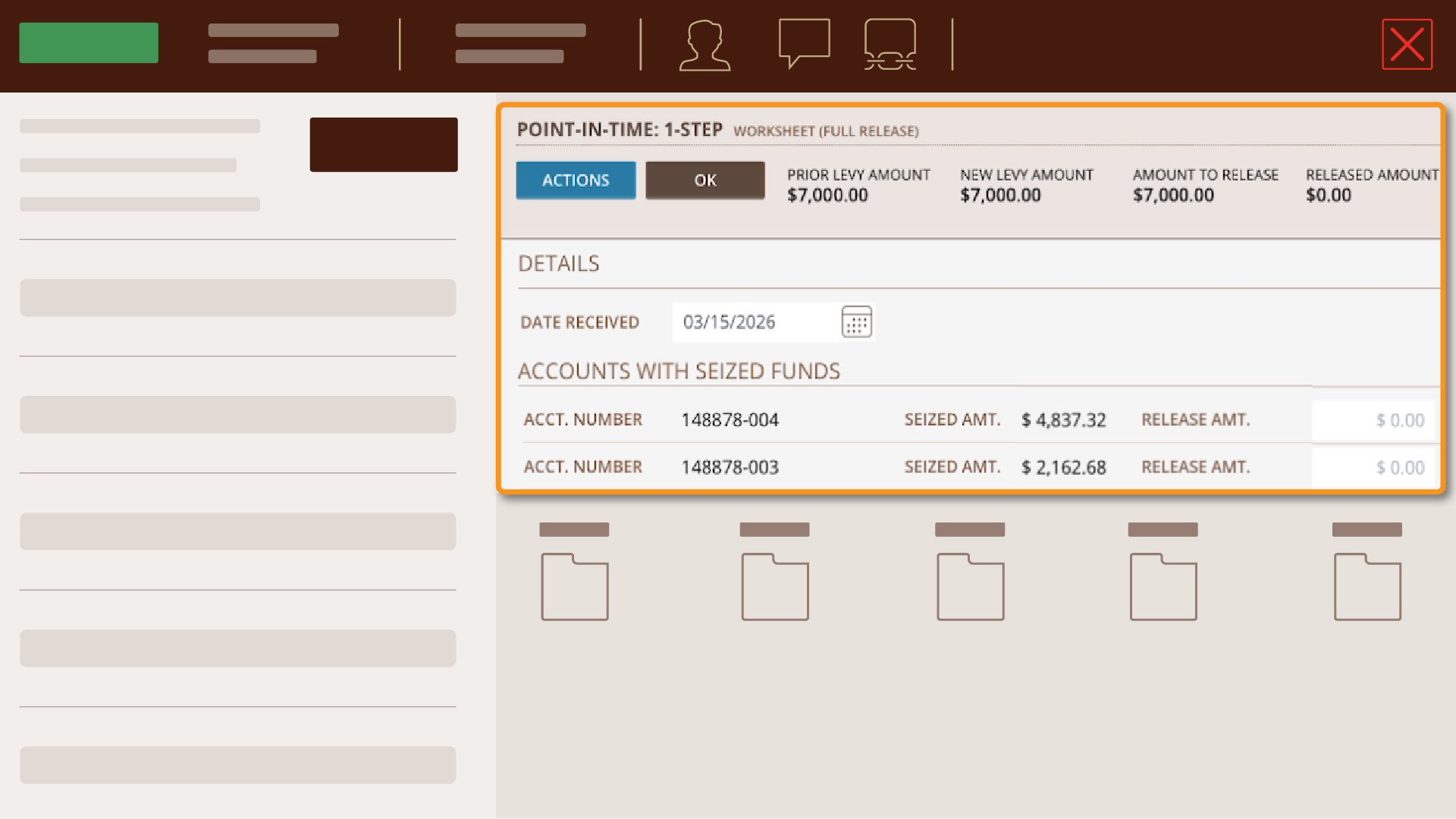
Header Information Different for Worksheets. When viewing a Worksheet (a detailed pop-up window), the financial information displayed will be specific to that Worksheet and may differ slightly from the financial summary shown on the Events Summary page. For example, a Partial Release Worksheet will show financial information relevant to that release:
#3. Actions Button: The "Do Everything" Button
Other than adding new Debtor/Subjects (which is done on the left side as part of the order's meta-data), everything else can be completed using the Actions button at the top of the right side. This includes running Subject Searches and Account Lookups, manually creating accounts, creating new Account Reviews for continuous levies, recording partial or full releases, and logging payment information.
Remember that to complete any action you always must click SAVE.
#4: Events Summary: Compliance Review at-a-Glance
The Events Summary displays the financial information described above, along with a record for every event in the matter. The event types are:
- Account Reviews: Used whenever you review the debtor's accounts to determine whether there are funds or assets to seize. Point-in-time garnishments have a single Account Review; continuous levies will typically have multiple. A review must be marked Complete before a new Account Review can be created.
- Partial Releases: Used whenever a partial release is received from the garnishor. There are two types: one in which the garnishor specifies a reduced levy amount, and one in which the garnishor specifies an amount of held funds to be released back to the debtor.
- Full Releases: Used when a full release is received from the garnishor, at which point the financial institution has no further obligation under the order.
- Payments: Used whenever a payment is made to the garnishor, whether from one account or multiple accounts. The Payment event records the funds actually disbursed, whether by check or other means.
#5. Worksheets: Detailed Pop-Up Work Areas
Each event has a detailed Worksheet that can be opened to record the specifics of that Event. For example, the Account Review Worksheet centralizes all relevant account data into a single interface, making it particularly well-suited to complex multi-account scenarios. It automatically checks account balances as your record seized funds and processing fees against exemptions and offsets, and provides direct visibility into ACH transactions. Release Events and Payment Events also have worksheets tailored to that specific data.
You can identify a Worksheet screen by two indicators: (1) it will be labeled as a Worksheet, and (2) it will include an OK button to close the Worksheet and return to the Events Summary. The Actions button within a Worksheet will display only the actions available in the context of that event.
Workflow: 5 Things Every User Should Know
There are five basic capabilities in Levy Manager that every user should know. In addition, if your company has enabled automated workflows with integrations, be sure to review the topics in Integration-Driven Automation.
For government agency levies received in PDF format, Levy Manager uses AI to extract key levy data (such as debtor name, levy amount, and agency information) directly from the document. Where API integrations are in place, this extraction also triggers an automatic subject search and account lookup.
 No Customer Data Used in AI Training: Safari does not use any customer data to train its AI models. It works directly with the agencies to obtain the samples we need for training.
#2. 'Garnishment Type' Field Affects Workflow Options
The Garnishment Type field, found in the meta-data on the left side of the matter screen, controls which workflow options are available. There are four types: Point-in-time: 1-step; Point-in-time: 2-step; Continuous: 1-step; and Continuous: 2-step.
For 2-step garnishments (i.e., you cannot make the payment until receiving an order to make the payment), Levy Manager adds a special status of ON HOLD: Awaiting Remit Order. While a matter is in this status, it is removed from the Active-Unresolved queue, keeping that list focused on items requiring immediate action.
For continuous garnishments, two additional features become available. First, users can record whether an account has been placed on hold (frozen), and for institutions with active integrations, this will automatically freeze the account for the specified amount. Second, a TO DO: Next Review status allows users to specify the date of the next scheduled account review, keeping continuous levy matters on track over time.
#3. 'Events' Are the Workflow Building Blocks
[to be completed]
Every order includes an interactive timeline covering the full lifecycle of compliance events, from initial account review through final payment or release. The timeline provides click-through access to individual decision points and is backed by a detailed Transaction Ledger, giving institutions an audit-ready record at any point in the process.
#4. '1-Click' Answers vs. Template Answers
Levy Manager can automatically generate and deliver responses to serving parties. For government agency levies, responses are generated in the ANSI-approved X9.129 format and delivered directly to the issuing agency. For other order types, customers use templates to prepare responses for delivery.
#5. 'Seized Amount' Multiple
Some states require garnishees to seize more than the levy amount (e.g., Hawaii requires 1.2x the levy amount). To support this,
Company Owners can configure Levy Manager to include a 'Seize Amount Multiple' field in garnishment matters, which allows the system to identify the correct amount to hold while ensuring that any final payment never exceeds the actual debt owed. The multiple can be set as a default at the Subtype level, so users working with those order types do not need to manually adjust the field for each matter. For more information, see
Seizing Funds & Freezing Accounts.
Account Review Worksheet
The Account Review Worksheet centralizes all relevant account data into a single interface, making it particularly well-suited to complex multi-account scenarios. It automatically balances seized funds, remaining balances, and processing fees against exemptions and offsets, and provides direct visibility into ACH transactions. Accounts can be quickly excluded or designated for seizure and fee assessment.
Related Articles
GAR - Detailed Workflow Guide
Garnishments & Levies - Detailed Workflow Guide The following is a generic guide of issues, tips, and common practices for the garnishment workflow in Safari. REMEMBER to check the Library in Safari for your company's specific version of this ...
GAR - Workflow Status & Dates
Workflow Status and Dates For all matter types, Safari organizes Status into three general phases: To Do, On Hold, and Closed. For matters with a Type of "Garnishment," these statuses are specially tailored to garnishment workflows. Within the To Do ...
GAR - Intake
GAR - Intake Before anyone can work a garnishment, it has to get into Safari and become a matter — a record with the order attached, the debtor named, and the amount owed. How much of it happens automatically depends on how your companies AI settings ...
Workflow - Status / Date Due
Overview The status selection in each matter is a critical workflow feature. Below are several examples: Tracking action that needs to be completed. Each matter has a series of "To Do" statuses. You can use these to monitor progress and identify work ...
Workflow - Transfer to Other System
Overview - Transferring Documents to Other Systems VIDEO TUTORIAL (8 mins) - view video For any served document you will not manage and resolve in Safari, you can transfer the served document to other systems or teams for processing. For example, if ...
